Showing posts with label PROGRAM HTML. Show all posts

Saturday, February 25, 2017

Kode Warna HTML ( HEX Code )

Heksadesimal atau sistem bilangan basis 16 adalah sebuah sistem bilangan yang menggunakan 16 simbol. Berbeda dengan sistem bilangan desimal, simbol yang digunakan dari sistem ini adalah angka 0 sampai 9, ditambah dengan 6 simbol lainnya dengan menggunakan huruf A hingga F, Jika diterapkan pada Kode HEX ( Kode Warna HTML ) adalah kode yang berfungsi sebagai custome pilihan warna yang dapat mempercantik tampilan blog. berikut kode-kode yang bisa anda coba untuk mewarnai blog anda :

Thursday, December 1, 2016

HTML Editors

Write HTML Using Notepad or TextEdit

Web pages can be created and modified by using professional HTML editors.
However, for learning HTML we recommend a simple text editor like Notepad (PC) or TextEdit (Mac).
We believe using a simple text editor is a good way to learn HTML.
Follow the four steps below to create your first web page with Notepad or TextEdit.

Step 1: Open Notepad (PC)

Windows 8 or later:
Open the Start Screen (the window symbol at the bottom left on your screen). Type Notepad.
Windows 7 or earlier:
Open Start > Programs > Accessories > Notepad

Step 1: Open TextEdit (Mac)

Open Finder > Applications > TextEdit
Also change some preferences to get the application to save files correctly. In Preferences > Format > choose "Plain Text"
Then under "Open and Save", check the box that says "Ignore rich text commands in HTML files".
Then open a new document to place the code.

Step 2: Write Some HTML

Write or copy some HTML into Notepad.
<!DOCTYPE html>
<html>
<body>

<h1>My First Heading</h1>

<p>My first paragraph.</p>

</body>
</html>

Step 3: Save the HTML Page

Save the file on your computer. Select File > Save as in the Notepad menu.
Name the file "index.htm" and set the encoding to UTF-8 (which is the preferred encoding for HTML files).

You can use either .htm or .html as file extension. There is no difference, it is up to you.

Step 4: View the HTML Page in Your Browser

Open the saved HTML file in your favorite browser (double click on the file, or right-click - and choose "Open with").
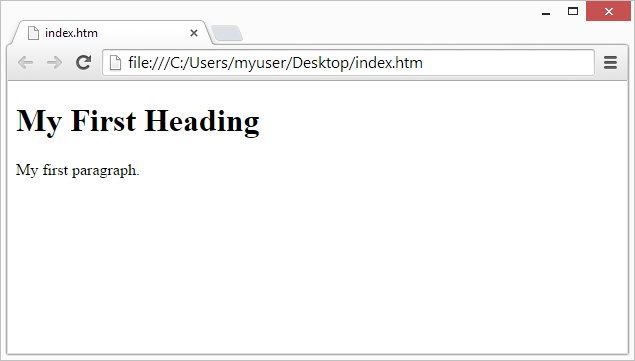
The result will look much like this:


HTML Introduction


What is HTML?

HTML is the standard markup language for creating Web pages.
  • HTML stands for Hyper Text Markup Language
  • HTML describes the structure of Web pages using markup
  • HTML elements are the building blocks of HTML pages
  • HTML elements are represented by tags
  • HTML tags label pieces of content such as "heading", "paragraph", "table", and so on
  • Browsers do not display the HTML tags, but use them to render the content of the page

A Simple HTML Document

Example

<!DOCTYPE html>
<html>
<head>
<title>Page Title</title>
</head>
<body>

<h1>My First Heading</h1>
<p>My first paragraph.</p>

</body>
</html>
Try it Yourself »

Example Explained

  • The <!DOCTYPE html> declaration defines this document to be HTML5
  • The <html> element is the root element of an HTML page
  • The <head> element contains meta information about the document
  • The <title> element specifies a title for the document
  • The <body> element contains the visible page content
  • The <h1> element defines a large heading
  • The <p> element defines a paragraph

HTML Tags

HTML tags are element names surrounded by angle brackets:
<tagname>content goes here...</tagname>
  • HTML tags normally come in pairs like <p> and </p>
  • The first tag in a pair is the start tag, the second tag is the end tag
  • The end tag is written like the start tag, but with a forward slash inserted before the tag name
Tip: The start tag is also called the opening tag, and the end tag the closing tag.

Web Browsers

The purpose of a web browser (Chrome, IE, Firefox, Safari) is to read HTML documents and display them.
The browser does not display the HTML tags, but uses them to determine how to display the document:


HTML Page Structure

Below is a visualization of an HTML page structure:
<html>
<head>
<title>Page title</title>
</head>
<body>
<h1>This is a heading</h1>
<p>This is a paragraph.</p>
<p>This is another paragraph.</p>
</body>
</html>
Note: Only the content inside the <body> section (the white area above) is displayed in a browser.

The <!DOCTYPE> Declaration

The <!DOCTYPE> declaration represents the document type, and helps browsers to display web pages correctly.
It must only appear once, at the top of the page (before any HTML tags).
The <!DOCTYPE> declaration is not case sensitive.
The <!DOCTYPE> declaration for HTML is:
<!DOCTYPE html>

HTML5 Tutorial


With HTML you can create your own Web site.
This tutorial teaches you everything about HTML.
HTML is easy to learn - You will enjoy it.

Examples in Every Chapter

This HTML tutorial contains hundreds of HTML examples.
With our online HTML editor, you can edit the HTML, and click on a button to view the result.

Example

<!DOCTYPE html>
<html>
<head>
<title>Page Title</title>
</head>
<body>

<h1>This is a Heading</h1>
<p>This is a paragraph.</p>

</body>
</html>
Try it Yourself »
Click on the "Try it Yourself" button to see how it works.

HTML Examples

At the end of the HTML tutorial, you can find more than 200 examples.
With our online editor, you can edit and test each example yourself.

HTML Exercises and Quiz Test

Test your HTML skills at W3Schools!

HTML References

At W3Schools you will find complete references about tags, attributes, events, color names, entities, character-sets, URL encoding, language codes, HTTP messages, and more.